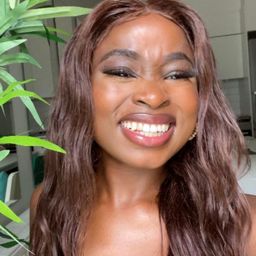
[HOW TO MAKE A YOUTUBE THUMBNAIL FOR FREE // WITH PHONTO AND PICSART.]
[HOW TO MAKE A YOUTUBE THUMBNAIL FOR FREE // WITH PHONTO AND PICSART.]
Here is the link to the video
()
00:00
[Music]
00:08
[Music]
00:11
hello guys welcome to my youtube channel
00:13
I'm gonna be showing you how to do your
00:16
thumbnails if you're here for the first
00:19
time make sure I give this video a
00:20
thumbs up and you subscribe without
00:23
further ado let's get into the video so
00:26
first of all I'm showing you the apps
00:28
that I use for editing my thumbnails
00:30
that's Phonto app and pics art so if you
00:33
don't have them make sure you download
00:35
them first before you get in watch this
00:39
you want to go ahead and open up
00:43
here photo app click on plain images
00:49
choose one of the squares and then you
00:51
want to customize them on the upper side
00:54
you want to type 1280 by 720 so down you
01:01
type 720 click 7 and after that there you
01:08
have your ideal YouTube thumbnail size
01:11
on your upper right is this sharing icon
01:15
click on that and choose use and save so
01:19
what I'm about to do right now just
01:21
ignore it don't do that click on those
01:23
three lines and choose add images choose
01:27
add images it's gonna take you straight
01:31
to your gallery so this I downloaded
01:34
this photo from Google if you want me to
01:38
show you how to do it let me know it
01:39
down in the comments below I just added
01:42
it like the way I showed you earlier you
01:45
choose those three lines and you choose
01:47
add image and you choose any photo you
01:50
want now it could be any any background
01:54
do you want to use that's okay then
01:57
after that you wanna zoom it in and save
02:00
so now that I've made sure that I've set
02:03
my image and I'm sure that I said I'm
02:06
gonna go ahead and reset
02:11
by clicking on the camera icon and then
02:15
I'm gonna click again on the camera icon
02:17
and click on photo albums I'll choose
02:22
the image that I saved and right now
02:24
what I'm doing is I'm trying to find
02:27
like photo effects edit them so that the
02:32
photo or the image can become more
02:34
vibrant this is not going to be my
02:37
background image so I wanted to look
02:40
more vibrant and more appealing so that
02:44
it can be eye-catching if you know what
02:47
I mean you know if you know you know so
02:52
just going through all filters to make
02:54
sure that I find the perfect effect if
03:00
you are done with the editing you have
03:02
to click done and there you have it so
03:06
now I want to add some text to this
03:08
specific image you want to add some text
03:11
like what type of topic you are talking
03:14
about and right now I'm just typing what
03:17
I want to type cause I'm making these
03:20
thumbnails specifically for this video
03:23
how to make a thumbnail so that's what I
03:26
chose and that's what I'm doing right
03:29
now and right now I'm just going through
03:32
different colors to see which color like
03:36
feet which color looks good just for
03:41
this specific image and close with the
03:44
colors that are in the background
03:47
[Music]
04:05
and I hope that is easy for you to
04:08
understand right now I'm just trying to
04:10
adjust the text or the sentence trying
04:15
to see where it fits the most and when
04:17
it looks paste I mean you have to take
04:19
your time with your thumbnail because
04:21
that's the first thing that people are
04:23
gonna see that's what's gonna make
04:25
people want to click on your video so so
04:28
you want it to look good I want you to
04:31
look good enough for people to click on
04:32
it so right now I'm gonna save this
04:35
image and I'm gonna set this image and
04:39
leave the font or app say open pigs art
04:46
and click on the plus sign which is in
04:51
the middle which is gonna lead to
04:54
gallery or photo album
04:57
then you're gonna choose that same image
05:00
that you saved from photo app so what
05:03
I'm about to do is option now you don't
05:05
have to do this I'm gonna click on
05:07
sticker just to add some stickers to
05:10
this thumbnail so the good thing about
05:15
this is that it's a such engine where
05:17
you can search any stickers you want any
05:20
type of stickers you want so I
05:22
specifically searched for this one and I
05:26
wanted something more detailed but I
05:28
didn't find that so I just went with
05:30
this square or another square
05:33
rectangular foam yeah so you can just
05:38
choose any stick as you want so me I
05:40
just decided to go with this one but
05:42
maybe he was searching for a crown
05:44
you're searching something maybe you
05:47
were searching for something that is
05:49
specific just go ahead and type in your
05:52
keywords and the results will pop up
05:57
gives us what I can say about that
06:01
so I went through all the stickers and I
06:04
decided not to add any more to my to my
06:09
thumbnail I just didn't find them
06:12
interesting or I just didn't find them
06:16
interesting if you don't want to add
06:18
stickers like me when I click the cross
06:21
sign or the egg sign and go back and
06:23
choose add photo to take you straight to
06:27
your gallery and you will add any photo
06:30
you want pick up light down to your
06:33
right the second icon click on cut out
06:37
you want to cut out the background and
06:40
keep this photo of you as I'm basically
06:44
showing you in the video
06:46
[Music]
06:59
so when you are done cutting out the
07:02
puddle we just want to adjust it to any
07:06
place or of the thumbnail we want it to
07:10
be and right now I'm just trying to
07:13
bother it with a white line so that it
07:16
can stand out which I'm gonna show you
07:19
ahead on how to put our photos how to
07:23
edit them so that they have that white
07:26
border around them or any color of your
07:29
choice so if you're interested keep
07:32
watching right now I'm just trying to go
07:40
through different colors to see which
07:44
one fits the best and I'm just trying to
07:47
adjust the photo trying to see which
07:50
sides it fits the best and it looks the
07:53
best then I clicked on a dress just to
07:56
enhance the photo so that it can be more
07:58
outstanding so after I finish editing
08:04
the photo I decided to add more text I
08:08
started to add more text to the
08:11
thumbnail and you can add as much text
08:14
as you want
08:16
I just decided to go with two types of
08:20
text the title and explain and go into
08:26
more depth about what this video is
08:28
really about
08:46
so when I'm done I just try to adjust
08:49
the text wherever I want on the
08:53
thumbnail you want to put it in a place
08:55
way it will be easily seen so that you
08:58
want to also stroke it with other colors
09:03
like let's say for instance black so
09:05
that somebody will with a small phone
09:09
will be able to see what while they are
09:12
scrolling down they will be able to see
09:14
the thumbnail that were able to read
09:15
what's on there so you make sure that
09:18
even in a smaller screen you make sure
09:21
that it's readable
09:27
[Music]
09:36
[Music]
09:45
[Music]
10:13
right now I'm just trying to find
10:16
different stickers stickers that can fit
10:19
my thumbnail and I can give it a little
10:22
more personality
10:28
[Music]
10:33
something that I forgot to mention
10:35
earlier is that you can edit you can
10:38
edit your stickers and you can control
10:41
the optimality just like how you
10:43
normally you like that it's your normal
10:45
photo
10:47
[Music]
10:52
[Music]
11:29
[Music]
11:55
if you like videos like this please do
11:59
let me know down in the comments below
12:00
and also if there's something else you
12:04
would like for me to do also let me know
12:06
down in the comments below and if you
12:09
found this video helpful do subscribe
12:12
please to subscribe and give this video
12:15
a thumbs up also share this video to
12:18
rephrase my need e to like to learn how
12:21
to make some real
this video I'm gonna show you how to bow
14:33
die your photos so basically what I do
14:37
is that I click on add photo then it
14:40
takes me straight to my photo gallery
14:42
and I choose the photo that I want so
14:47
right now I'm gonna go to this one and
14:52
then I choose cut out when you scroll to
14:59
your left you'll see an icon that says
15:02
cut out which has scissors I mean it is
15:05
hard for you to see it has a sign of a
15:08
scissor a pair of scissors and then you
15:11
click on it I don't know if you see
15:16
where it says select so you select and
15:20
outline and then you wanna click on
15:30
erase to erase out all those all those
15:35
parts that we don't need and then you
15:43
press save so right now my image I've
15:49
removed the background like I had showed
15:51
you earlier before so I'm going to I'm
15:57
going to on my on my right side and the
16:01
second icon on your right side you see
16:04
where it says border you click on border
16:13
now the thing about this you can make
16:17
the borderline bigger or smaller now I
16:22
want mine to be about this size so
16:25
that's how you border your photos and
16:29
you can choose any color you prefer you
16:32
can choose any color you want for your
16:34
border line and when you're done you
16:36
click on apply so now you have your
16:41
bowleg photo I really hope that you
16:43
learned something new from this video
16:45
and if this video was helpful for you if
16:48
this video was helpful to you give me a
16:51
thumbs up subscribe and comment down
16:55
below let me know what you think and
16:57
I'll see you in my next video
16:59
thank you so much
17:02
[Music]
17:10
[Music]
Leave [HOW TO MAKE A YOUTUBE THUMBNAIL FOR FREE // WITH PHONTO AND PICSART.] to:
Best Posts From Flavia Luyima
We have not curated any of flavialuyima's posts yet. But you can encourage our curation team to review posts by visiting them regularly and by referring other readers. Because we give priority to frequently read content.