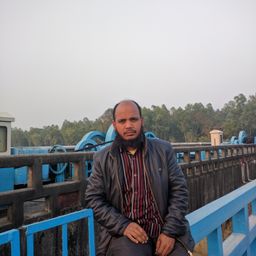
Photoshop Tutorial: One photo part changes with another picture
Photoshop Tutorial: One photo part changes with another picture******
Want to do something new with a picture of a photo? Or the face of a person's face in the face. Photoshop can be easily done.
source
There should be some similarity between the two images you want to get to get better results. Like changing the face of another with one's face, right no-nose-thot size-distance etc.
Here's the job using patch tool.
. Bring two layers of two images to one.
. If necessary, using the Transform command, change the size, rotation, etc. and bring them closer.
. Keep the two layers in a layer, with convenient spacing. Patch commands do not work on multiple layers.
. Select Patch Tool. This tool works with Freehand Selection.
. Select the place where you want to change.
. Take the drug that you want to replace with the jagar. Previews with changed pictures will be seen. After coming to the right place, release the mouse button.
Once the two parts are one, the edges are adjusted properly, if necessary, the color changes will be done by Photoshop itself.
Leave Photoshop Tutorial: One photo part changes with another picture to:

Best Posts From abdulmatin
We have not curated any of abdulmatin69's posts yet. But you can encourage our curation team to review posts by visiting them regularly and by referring other readers. Because we give priority to frequently read content.
More Posts From abdulmatin
- Earn money using the internet: How to earn from Google Adsense
- Earn money by working on the Internet: how to get more work
- Earn money by working on the Internet: how to get more work
- Photoshop Tutorial: One photo part changes with another picture
- Digital image manipulation in Photoshop, change the color of the eyes
- Photoshop painting: Different uses of brush
- Photoshop painting
- Photoshop in 3D model painting
- Create slideshow (web gallery) or PDF from the image
- Use Adobe Bridge with Photoshop, Illustrator or After Effects